Как проверить экран на битые пиксели и засветку (гид 2026)
Узнайте, как проверить любой экран на битые пиксели, застрявшие пиксели и засветку подсветки с помощью сплошных цветов. Стандарты гарантии производителей и бесплатный тест в браузере.
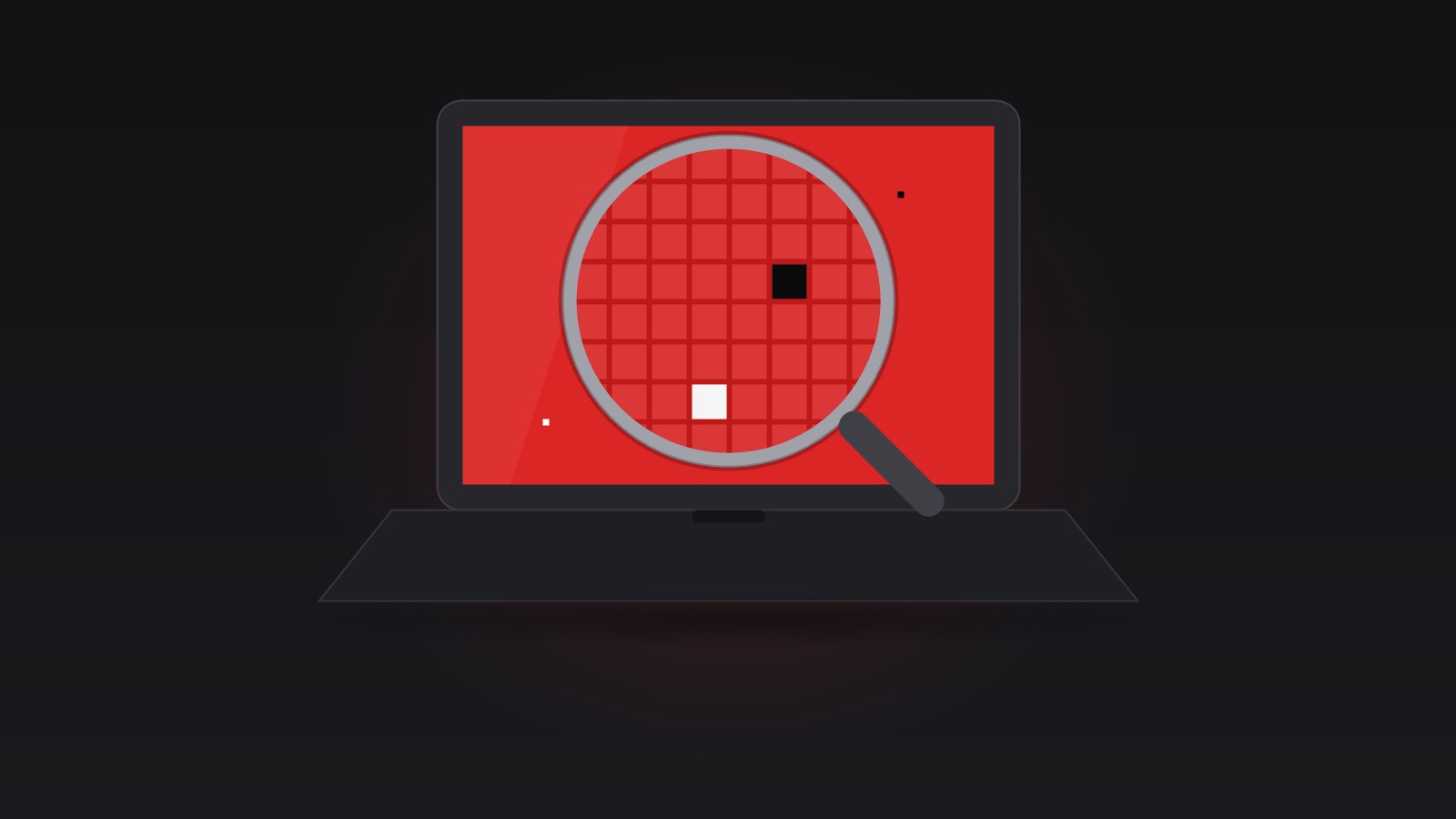
Dead Pixels vs. Stuck Pixels
A dead pixel is permanently black: the transistor that powers it has failed, so it never lights up. It is most visible against a white or bright background. A stuck pixel is the opposite — one of its three sub-pixels (red, green or blue) is locked in the “on” position, so the pixel shows a tiny colored dot that never changes. Stuck pixels only show up on certain colors, which is why you have to cycle through the primary colors to find them.
Neither is caused by software. If a dot appears in photos, videos and solid-color test screens alike, at the same position every time, it is a hardware defect of the panel.
What Backlight Bleed Looks Like
Most LCD screens are lit from behind by an LED backlight. Where the panel and frame do not seal perfectly, light leaks through — usually along the edges or in the corners. On a pure black screen in a dark room this shows up as a bright, cloudy patch or glow.
A small amount of bleed is normal for LCD technology; you will find it on most laptops if you look hard enough. It only matters when it is visible in everyday use, like dark movie scenes. Note that OLED screens have no backlight, so they cannot bleed — but they can suffer burn-in, a different defect entirely.
How to Test Your Screen
The test itself takes five minutes and needs no installation. Our Screen Color Test fills the browser with pure test colors, entirely client-side:
- Set brightness to 100% and turn off night mode or any color filter.
- Open the tool and click Start fullscreen test — the screen fills with pure black.
- Look at the edges and corners in a dark room for bright patches (backlight bleed).
- Click or press Space to cycle to white, then red, green and blue. Sweep your eyes across the whole panel each time, hunting for dots that differ from the background.
- Finish with the grayscale gradient to check for banding and uneven brightness.
Press Esc at any time to exit. The tool keeps your screen awake while you inspect and never uploads anything — there is nothing to upload, it is just a colored page.
Screen Color Test
Fill your screen with pure test colors to find dead pixels, stuck pixels and backlight bleed. Runs fullscreen in your browser — nothing installed, nothing uploaded.
Попробовать Screen Color Test →What Manufacturers Consider “Normal”
Almost every brand grades panels against a dead-pixel policy rather than promising perfection. The common ISO 9241-style classes allow a handful of defects before a panel counts as faulty, and many manufacturers exchange a screen only when defects exceed the count in their published table — for example “2 dead pixels or 5 stuck sub-pixels”.
Practical takeaway: count and note the exact defects before you contact support or the seller. A single dead pixel is often within spec, but a brand-new laptop showing a cluster of them is worth exchanging immediately — within the return window you do not need to argue policy at all.
Can Defects Be Fixed?
Dead pixels cannot be revived by software — the hardware no longer responds. Stuck pixels occasionally recover: rapidly cycling colors for a while (a “pixel fixer”) can jolt a sub-pixel back into switching, but success is hit-or-miss and pressure-based tricks risk damaging the panel.
Backlight bleed likewise has no software fix. Some users reduce its visibility by lowering brightness or loosening an over-tightened bezel screw (at their own risk), but a clearly uneven panel is a warranty matter.