Как сжать изображение без потери качества (гид 2026)
Уменьшите размер изображения на 70–90% с правильным форматом и качеством. Разбор JPEG, PNG, WebP и AVIF, сжатие до точного размера в КБ и бесплатный компрессор в браузере.
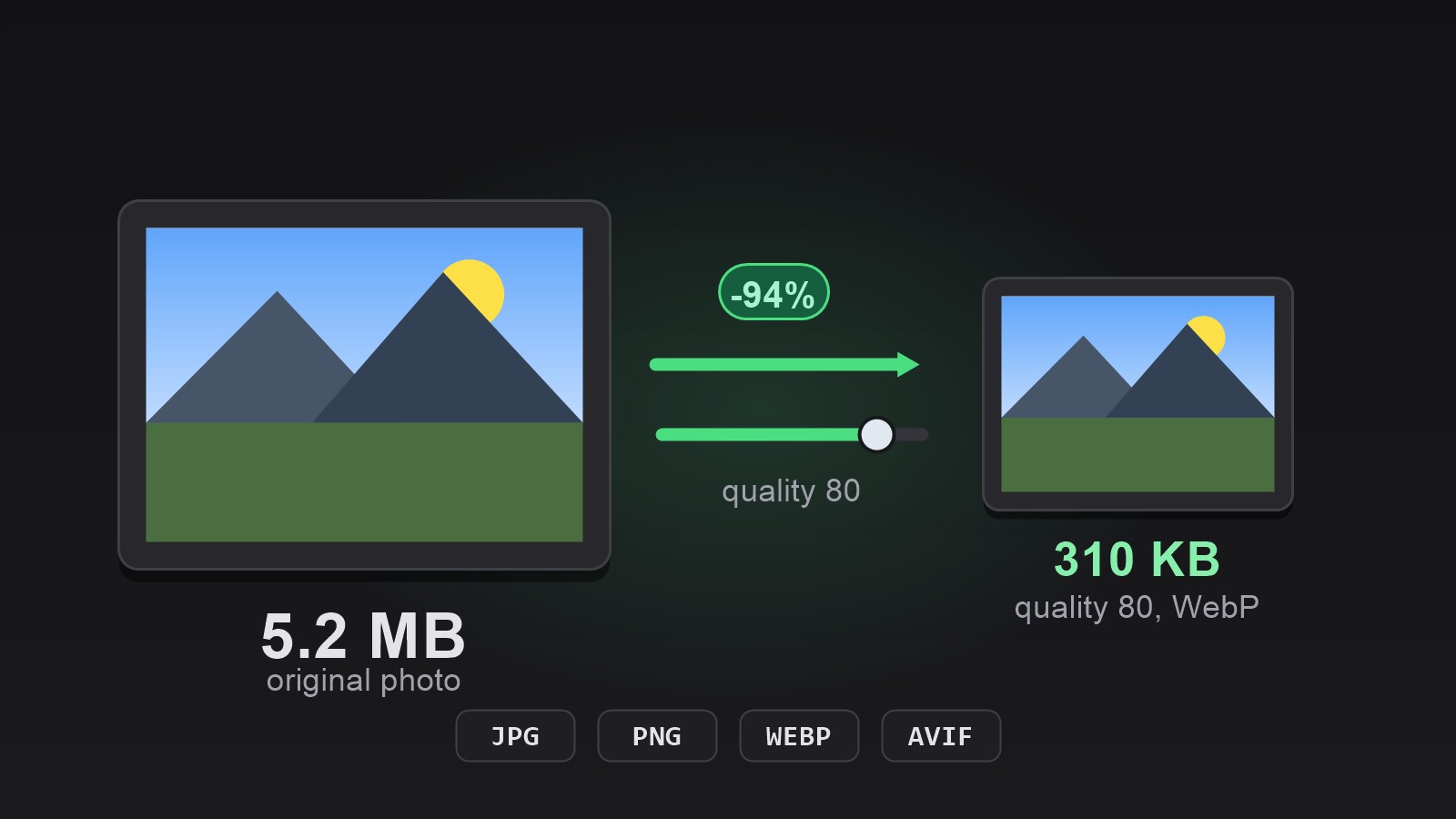
What Does Image Compression Actually Do?
Compression reduces the number of bytes an image file needs, not the number of pixels. There are two families. Lossless compression (PNG, lossless WebP) rewrites the file more efficiently — every pixel survives, but savings are modest, typically 5–30%. Lossy compression (JPEG, lossy WebP, AVIF) discards detail the human eye barely registers, which is where the big 70–90% savings come from.
Why can lossy shrink so aggressively? Formats like JPEG store brightness precisely but color approximately, because your eyes are far more sensitive to brightness changes. Combined with the fact that photos are full of smooth gradients that compress well, a quality-80 JPEG of a typical phone photo looks identical to the original at normal viewing size — at a fraction of the size.
Which Image Format Should You Compress To?
Match the format to the content, not habit. This table covers the four formats you will meet in 2026.
| Format | Best for | Typical result | Transparency |
|---|---|---|---|
| JPEG | Photos, the universal default | 70–90% smaller at quality 75–85 | No |
| PNG | Screenshots, logos, sharp text and flat colors | Lossless; larger than JPEG for photos | Yes |
| WebP | Web images, photos and graphics | ~25–35% smaller than JPEG at equal quality | Yes |
| AVIF | Next-generation web photos | Up to ~50% smaller than JPEG | Yes |
For photos you email or post, JPEG at quality 80 is the safe default. For your own website, convert to WebP or AVIF — every modern browser supports both. Reserve PNG for screenshots and graphics with crisp edges, where lossy compression would blur text.
How to Compress an Image to a Target File Size (e.g. 100 KB)
Many forms, visa applications and upload portals demand an exact ceiling, not just “smaller”. Two free browser tools cover both cases:
- Open the Image Compressor and drop your image in. Pick the output format — keep the original or switch to WebP for extra savings.
- Drag the quality slider. Start at 80; go lower only if you need more savings. The tool shows the resulting file size live.
- If you must hit a precise ceiling such as 100 KB, use the Image File Size tool instead: type the target in KB and it recompresses without changing the dimensions.
- Download the result. Nothing was uploaded — the compression ran locally on your device.
Image Compressor
Compress images by up to 90% with an adjustable quality slider and JPG, PNG, WebP or AVIF output. No upload, runs in your browser.
Попробовать Image Compressor →Does Compressing an Image Reduce Its Quality?
Lossless compression: no, not by a single pixel. Lossy compression: yes in principle, but the practical answer is “not visibly” if you stay in the quality 75–85 range. Below roughly 60, JPEG artifacts — blocky patches and halos around sharp edges — start to become visible, and there is no reason to go there for photos.
One rule protects you: compress once, from the original. Every re-compress of an already-compressed file compounds the losses. Keep your originals and export compressed copies.
Compress or Resize — Which One Do You Need?
The two solve different problems. Compression cuts file size (bytes) so pages load fast and uploads pass limits. Resizing changes dimensions (pixels) so the image fits a layout. A 4000-px photo shown at 400 px wide is wasting both bandwidth and pixels — resize it first with the Image Resizer, then compress the result. Doing both, in that order, gives the smallest useful file.